Getting Started with Patch Updates
Step-by-step guide to use React Native Stallion's Patch Updates on Pro or Enterprise. Learn enabling Patch Updates under Patch Settings in the Console, SDK requirements, and on-demand patches for releases after activation.
Getting Started with Patch Updates
Getting started with Patch Updates is straightforward. This guide covers SDK requirements and how Patch Updates fits into your existing Stallion workflow.
Requirements
- Plan: Pro or Enterprise (Patch Updates is not included on free plans)
- Activation: In the Stallion Console, open Project settings for your project, go to Patch Settings, and enable Patch Updates. Releases published after activation generate patches on demand.
- SDK Version: The latest stable React Native Stallion SDK supporting Patch Updates is 2.4.0 or above
- No Code Changes: Your existing codebase requires no modifications
- Same Workflow: Continue using React Native Stallion exactly as you always have
Pro & Enterprise:
Patch Updates is available only on Pro and Enterprise plans. In the Stallion Console, open Project settings, go to Patch Settings, and enable Patch Updates. All releases published after you enable this setting generate patches on demand.
SDK Requirement:
The latest stable React Native Stallion SDK supporting Patch Updates is 2.4.0 or above. Check the SDK Installation guide if you need to update.
Using Patch Updates
With Patch Updates enabled under Project settings → Patch Settings, eligible releases generate patches on demand when you promote—no further app configuration is required.
Step 1: Upload Your Bundle
Upload your bundle as usual using the Stallion CLI:
npx stallion publish-bundle \
  --upload-path=<orgname>/<project-name>/<bucket-name> \
  --platform=<android/ios> \
  --release-note="Your release notes"
Step 2: Promote the Release
Promote the release through the Stallion Console:
- Navigate to your bucket
- Select the bundle you want to promote
- Click "Promote Bundle"
- Fill in the target app version and release notes
- Save the promotion
Step 3: On-demand patch generation
When you promote a release that was published after you enabled Patch Updates, the system generates a patch on demand:
- Detects the previous version
- Generates an optimized patch containing only changes
- Signs the patch for security
- Distributes the patch to eligible users
Releases published before you enabled the feature are not eligible for patch generation.
Step 4: Users Receive Patches
- Users on the previous version receive the patch update
- Users on older versions or new installations receive full bundles
- Patches download automatically in the background
Verifying Patch Updates
After users request updates, open the release in the Stallion Console and check the Patch details section at the top of the release details page. It lists generated patches by source Stallion version. See Verify patch updates are generated under Troubleshooting for a screenshot and what to look for.
Troubleshooting
Verify patch updates are generated
Once Patch Updates is enabled and users are requesting updates, confirm patches are being created in the Console:
- Open the Stallion Console and go to Releases.
- Select a promoted release and open its release details page.
- At the top, look for the Patch details section (Patch Details Section).
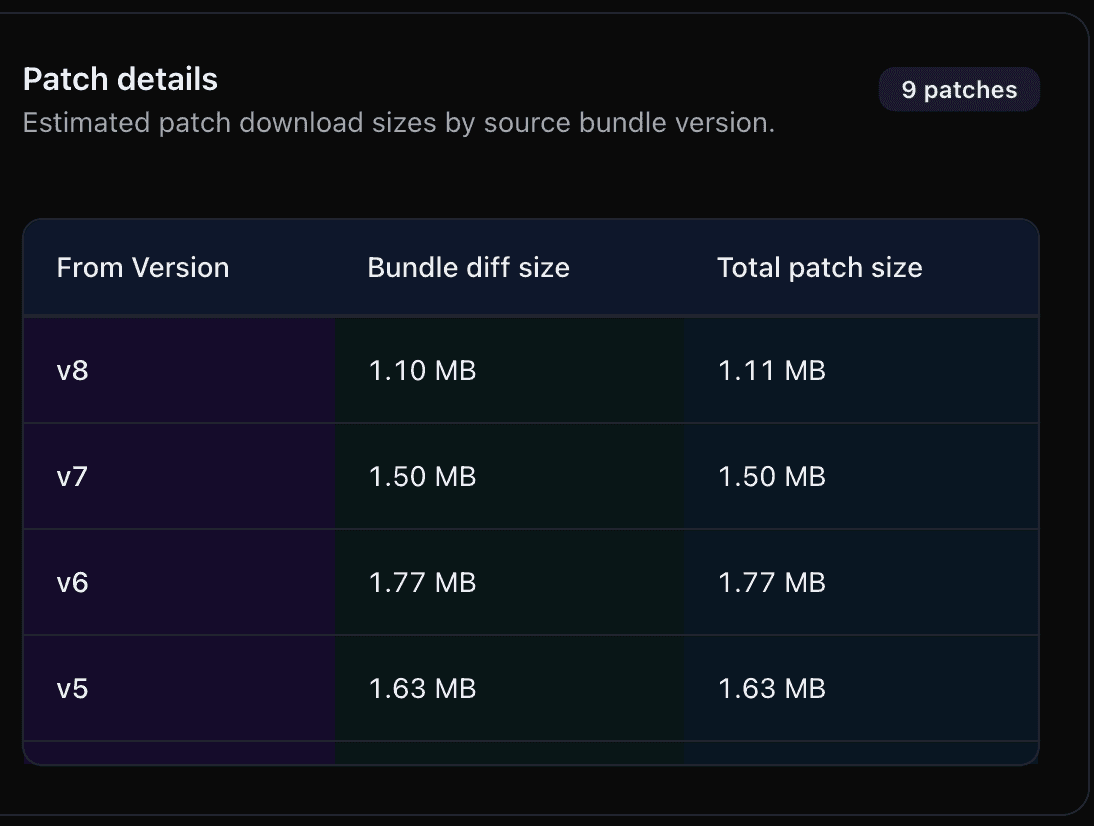
In Patch details, you can see which from versions have patches generated for this release, along with patch size metrics (for example bundle diff size and total patch size per source version).
If this section appears for your releases after users start requesting updates, Patch Updates is working successfully.
If it does not appear, work through the steps below.
Patch Not Generated
- Confirm Patch Updates is enabled under Project settings → Patch Settings (Pro or Enterprise only)
- Ensure the bundle or release was published after Patch Updates was enabled
- Ensure there's a previous release for the same app version
- Confirm you're running React Native Stallion SDK 2.4.0 or above
Users Not Receiving Patches
- Users must be on a source version that has a generated patch to the target release (see Patch details on the release)
- Users must have React Native Stallion SDK 2.4.0 or above
- Confirm the Patch details section lists the source version you expect; if not, wait for the first on-demand patch workflow to complete or check the steps above
Next Steps
- Learn More: Understand all the benefits
Conclusion
Getting started with Patch Updates is simple: use a Pro or Enterprise plan, enable Patch Updates under Project settings → Patch Settings, use React Native Stallion SDK 2.4.0 or above, then publish and promote releases as usual. Only releases published after activation generate patches on demand.